



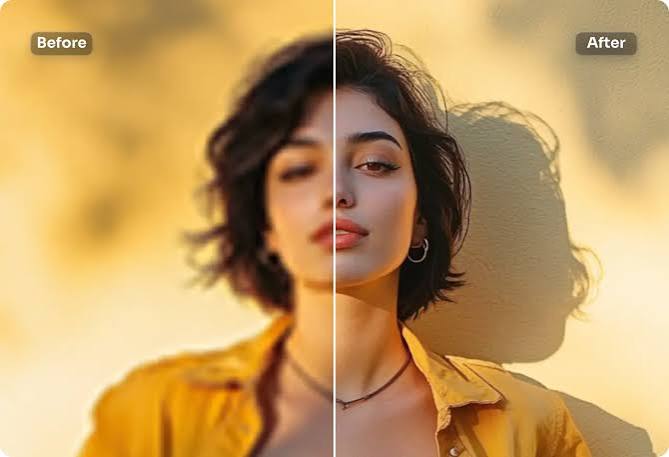
A photo AI enhancer can sharpen blur, reduce noise, and upscale images. However, the best tools do more than increase resolution. They analyze visual patterns and reconstruct details that ordinary resizing cannot recover.
- Photo AI Enhancer at a Glance
- What Is a Photo AI Enhancer?
- What Happens When You Press “Enhance”?
- The Four Jobs AI Enhancement Performs
- Enhancement vs. Restoration: A Crucial Difference
- What Today’s Major AI Enhancers Can Do
- A Better Way to Choose an AI Enhancer
- The “Enhancement Budget” Principle
- Why Over-Enhancement Looks Artificial
- Can AI Truly Unblur Any Photo?
- Best Workflow for Natural Results
- Where Photo AI Enhancers Are Most Useful
- Final Verdict
- FAQs
That power also creates an important limitation. AI can produce convincing detail that was never captured by the camera. Therefore, enhancement and factual restoration are not always the same thing.
Photo AI Enhancer at a Glance
| Feature | What It Actually Does | Best Use |
|---|---|---|
| AI Upscaling | Creates additional pixels intelligently | Small or low-resolution photos |
| Denoising | Reduces grain and digital noise | Night and high-ISO photography |
| Deblurring | Corrects some softness and motion blur | Slightly blurry images |
| Face Enhancement | Reconstructs facial details | Portraits and old photographs |
| Color Correction | Adjusts tones and color balance | Faded or poorly exposed images |
| Photo Restoration | Repairs visible damage | Scanned family photographs |
| Compression Repair | Reduces JPEG-style artifacts | Downloaded or compressed images |
| Lighting Enhancement | Improves exposure and shadows | Dark photographs |
What Is a Photo AI Enhancer?
A photo AI enhancer is software that uses machine learning. It analyzes an image before deciding how to improve it.
Traditional editors mostly modify existing pixels. For example, conventional sharpening increases contrast around edges. AI-based systems can take a different approach. They recognize patterns associated with faces, textures, noise, and blur.
Modern tools combine several operations within one workflow. These can include sharpening, denoising, face recovery, lighting correction, and enlargement.
For example, Topaz Photo currently provides dedicated tools for sharpening, denoising, face recovery, lighting, color, and upscaling. (Topaz Labs)
Meanwhile, Google Photos offers Photo Unblur for improving blurry photographs. It also provides Portrait Light and other AI-assisted editing features. (Google)
So, “AI enhancer” describes a category rather than one technology.
What Happens When You Press “Enhance”?
The interesting part happens behind the button.
The software first examines visual problems within the image. It may detect noise, compression, weak edges, faces, or low resolution. Then, its trained model estimates an improved output.
Consider a tiny portrait downloaded from an old website. Simply making it four times larger creates bigger pixels. It does not reveal genuinely captured eyelashes or skin texture.
AI upscaling works differently. It predicts plausible high-resolution information from learned visual patterns.
That distinction matters.
The resulting image can look more detailed without containing more historical evidence.
Topaz acknowledges this issue in its own documentation. Its upscale models can generate unwanted artifacts from very poor source images. The company recommends starting with the original whenever possible. (Topaz Labs Docs)
The Four Jobs AI Enhancement Performs
Instead of treating enhancement as one magical process, it helps to divide it into four jobs.
1. Cleaning
Noise reduction removes unwanted grain and compression artifacts.
Low-light photography particularly benefits from this process. However, aggressive denoising can remove legitimate texture too.
Topaz states that its non-RAW denoise system targets low-light and compression noise while recovering detail. It separately recommends RAW-specific processing for RAW photographs. (Topaz Labs Docs)
2. Correcting
Correction targets problems such as mild blur or poor lighting.
AI sharpening can address different blur sources. These include camera movement, lens blur, and missed focus.
However, severely blurred information may remain impossible to recover accurately.
3. Enlarging
Upscaling increases pixel dimensions.
Modern AI models attempt to preserve edges and textures during enlargement. Some models also reconstruct additional visual information.
Topaz currently supports enlargement up to 600% in suitable cases. Its documentation warns that maximum enlargement depends on the starting image. (Topaz Labs Docs)
4. Reconstructing
This is the most powerful and controversial stage.
Generative enhancement can reconstruct missing-looking details. Faces, hair, fabrics, and foliage may appear dramatically clearer.
Yet reconstruction involves prediction.
The pixels may look realistic. They are not automatically historically accurate.
Enhancement vs. Restoration: A Crucial Difference
This distinction often gets ignored.
| Process | Main Goal | Risk of Invented Detail |
|---|---|---|
| Basic color adjustment | Improve appearance | Very Low |
| Noise reduction | Remove unwanted grain | Low |
| Conventional sharpening | Improve edge visibility | Low |
| AI deblurring | Reconstruct clearer structure | Medium |
| AI upscaling | Increase usable resolution | Medium |
| Face reconstruction | Rebuild facial detail | High |
| Generative restoration | Recreate missing areas | High |
This table reveals an important principle.
The stronger the reconstruction, the more carefully accuracy needs checking.
A beautiful result is not necessarily a faithful result.
That matters when restoring historical photographs, evidence, documents, artwork, or family archives.
What Today’s Major AI Enhancers Can Do
Different tools target different users.
Adobe Express AI Image Enhancer combines automatic enhancement with manual controls. Users can adjust brightness, contrast, saturation, cropping, and sharpening. Adobe also provides AI features for removing or adding objects. (Adobe)
For damaged historical images, Adobe Firefly photo restoration can assist with faded photographs, scratches, tears, and other damage. Adobe describes its system as analyzing texture, lighting, and photographic patterns during restoration. (Adobe)
Remini focuses strongly on automatic enhancement. Its current features include face enhancement, background enhancement, denoising, sharpening, color correction, and image enlargement. (Remini)
Meanwhile, Topaz offers considerably more control over individual enhancement stages. Its current sharpening system even provides different models for portraits, lens blur, strong blur, and noise-heavy photographs. (Topaz Labs Docs)
There is no universal “best” enhancer. The right choice depends on the damaged information.
A Better Way to Choose an AI Enhancer
Most comparisons rank tools from first to fifth. That approach misses something more useful.
Choose the tool based on the defect, not its popularity.
| Your Image Problem | Feature to Look For |
|---|---|
| Grainy night photo | AI denoise |
| Slight camera shake | Deblur or sharpen |
| Tiny downloaded image | AI upscale |
| Old portrait | Face recovery |
| Scratched scan | Photo restoration |
| Dark smartphone image | Lighting correction |
| Blocky JPEG | Compression repair |
| Faded colors | Color restoration |
| Important historical image | Conservative enhancement controls |
This approach prevents unnecessary processing.
For example, a sharp 500-pixel photograph primarily needs upscaling. Running aggressive face reconstruction first could unnecessarily change facial characteristics.
The “Enhancement Budget” Principle
A useful way to evaluate AI enhancement is through an enhancement budget.
Every photo contains limited reliable visual information. Each aggressive AI operation moves further from that original information.
Imagine three levels.
Level 1: Conservative
Use exposure correction, mild denoising, and restrained sharpening. This works well when authenticity matters.
Level 2: Reconstructive
Use deblurring, stronger upscaling, and face recovery. This suits personal photographs where visual improvement matters more.
Level 3: Generative
Allow AI to reconstruct heavily damaged or missing details. This can produce impressive results, but authenticity becomes harder to guarantee.
Therefore, stronger enhancement should require stronger human review.
Why Over-Enhancement Looks Artificial
AI enhancement can fail even when the output initially looks impressive.
Skin may become unnaturally smooth. Eyes can appear excessively sharp. Hair may gain invented strands. Buildings can develop strange textures. Small text can become incorrect.
Repeated processing makes these problems worse.
Topaz specifically warns that incorrect models can create unwanted results. Its documentation also advises avoiding unnecessary overlapping denoise and deblur processing. (Topaz Labs Docs)
The best workflow is usually restrained.
Keep the original file. Apply only necessary corrections. Compare the output at full resolution. Then inspect faces, text, hands, edges, and repeated patterns.
Can AI Truly Unblur Any Photo?
No.
AI can improve many blurred images. It cannot guarantee recovery of information that never reached the camera sensor.
Google’s Photo Unblur targets out-of-focus photographs and motion-related blur. (Google) Topaz similarly provides specialized sharpening models for several blur conditions. (Topaz Labs Docs)
Still, extreme motion blur creates an information problem.
If someone’s face occupies ten indistinct pixels, there is not enough recorded detail to reconstruct every facial feature with certainty.
AI can estimate a believable face.
That does not prove the face originally contained those exact details.
Best Workflow for Natural Results
For most photographs, enhancement works better in stages:
- Start with the highest-quality original.
- Correct severe noise first.
- Address blur only when necessary.
- Apply face recovery carefully.
- Correct lighting and color.
- Upscale near the end.
- Inspect the full-resolution result.
- Keep the untouched original permanently.
The order can change depending on software and file type. RAW photographs especially need appropriate RAW processing.
For tiny compressed photographs, specialized reconstruction may work better. Topaz’s Wonder model, for example, targets small or medium low-resolution images affected by softness, noise, or compression. (Topaz Labs Docs)
Where Photo AI Enhancers Are Most Useful
AI enhancement has practical value far beyond social media.
Old family photographs can become easier to view. Online sellers can clean product images. Publishers can improve weak source photographs. Photographers can rescue noisy low-light shots. Designers can enlarge smaller assets for larger layouts.
However, professional contexts require more caution.
Journalism, historical archives, identification images, and legal evidence demand fidelity. Generative reconstruction may change meaningful details.
In those situations, editors should preserve the source image. They should also disclose substantial AI reconstruction when appropriate.
Final Verdict
A photo AI enhancer is best understood as an intelligent reconstruction toolkit, not a magic resolution button.
Its strongest advantage is speed. Modern tools can handle noise, blur, resolution, faces, lighting, and damaged areas within minutes.
Its greatest weakness is equally important: AI can create plausible detail.
Therefore, the best enhancement is not always the sharpest version. It is the version that improves the photograph without unnecessarily changing what the photograph represents.
That principle matters more as enhancement models become increasingly powerful.
FAQs
What is a photo AI enhancer?
It uses AI to improve image quality automatically. Common features include sharpening, denoising, upscaling, and restoration.
Can AI make a blurry photo clear?
Sometimes. Mild blur can improve substantially. Severe blur may require reconstructed or predicted details.
Does AI upscaling create real details?
Not necessarily. AI can predict plausible details from learned patterns. Those details were not always recorded in the source.
Can AI restore old photographs?
Yes. Modern tools can reduce damage, fading, noise, and blur. Generative restoration can also reconstruct missing-looking areas.
Which photo AI enhancer is best?
It depends on the image problem. Remini emphasizes easy automatic enhancement. Adobe provides broader editing workflows. Topaz offers specialized enhancement controls.
Should I delete the original after enhancement?
No. Always preserve the untouched source image. Future enhancement models may produce better or more accurate results.
Read more:Remini Online: How the AI Photo Enhancer Works, Features, Privacy and Uses